Office Address 77, Poseidonos Avenue, Glyfada , Athens, 166 75 , Greece

OMNi Quick Guides

OMNi Quick Guides

Autocomplete for frequently used text

Use autocomplete to speedup preparing messages and avoid the hassle of typing similar text again and again.

Quick preview for image and pdf attachments

Quick and easy: Place your mouse over the attached image or pdf for a preview of the related attachment.  Adding to related attachment functions like: one click download all, drag and drop, copy/paste, auto include in forward, exclude in reply, search for attachment.

Drag and drop to new message

Use drag and drop to add an attachment from and email to a new message. Likewise, to add an email as an attachment to a new message.

 Reminders for Personal Flags

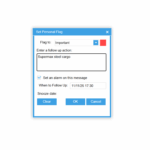
Adding a personal flag to a message, is a handy feature that allows users to mark messages for follow up and to-do actions. You may mark any message by selecting the flag icon or pressing shortcut keys mf (Message Flag).  
Set a reminder for a pop-up alert at the selected date/time by clicking on “When to follow up”.

Hot Areas – Click to Save Time

Certain areas on screen may change color or present a tooltip while hovering over with your mouse. These hot areas will lead you to time saving functionality; a few are mentioned in this quick guide.

New Message Notifications

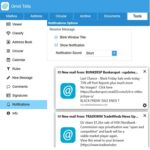
Use “Tools | Notifications Options” to get notified for new messages. Brief and non-obstructive notifications appear in the lower right corner of your desktop screen.

Quick Add Email Address from Message

You may easily update your address book directly from an incoming message. Just right click on the email address bubble as shown in this brief guide.

 Spelling check for any language

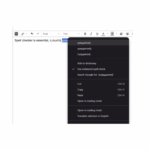
OMNi automatically checks the spelling of words.  A brief guide on how to use and how to add languages/dictionaries to Firefox or Chrome.

Strong Security

Telix security is galvanized after 30+ years of operation and thousands of users. OMNi is adding up to the secure environment of Telix with the these features

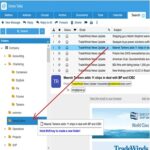
Drag to Folder via Search Tab

One more great usability enhancement requested by Telix users: You may file messages to any folder right away from the Search Tab.

Avoid unknown e-mail addresses

Better email security with automatic sender recognition. Telix offers a powerful address book that will automatically recognize unknown senders.

More than one Search Tabs

Keep a Search Tab, working with more than one Search Tabs. Tips and best practices from Omni users about search.

Shared Calendars

Share a calendar and collaborate with a closed group on schedule events and busy time, keep track of a meeting room availability, plan a trip and related meetings, office presence/on-leave, receive reminders in the office and your mobile device on the go.

Attention Texts for Messages

Colored attention texts assist users to focus on specific messages. Some attention labels may warn users for external or unknown senders, spam, attachments etc. Other attention labels may notify for important senders, positions, orders, vessels etc.

Insert an Omni document in your message

While editing an email message you may easily insert in-place any Omni document. Typing Alt-I will prompt for the Title, type at least one word from the title and select from the list.

SmartLoad to add your recipients

Adding one or more recipients to your message is very easy with Omni. With our latest enhancement just copy/paste any text including email addresses in the To: line and SmartLoad will automatically distinguish recipients.

Stay Secure – Change your Password

How to change your password with Omni and some tips for secure passwords.

Sanitize received messages

Secure received messages with HTML Sanitizer.

Telix Usage

Statistics for Telix Administrators. Graphs and lists about incoming/outgoing messages, user logins, per period/group and more…

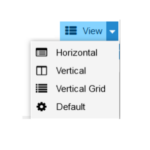
Vertical Grid Message List

This new message view list, is focused on users that would like the flexibility to select desired columns in the message list and their message on the right side of the screen.

Preview All Images

Preview in a single page all the attached images for a message.

Preview/open Attachments

With attachments, you may see a quick, full preview, copy to a new message or document, open, download

OMNi Ports

All ports and UN/LOCODE locations used in trade and transport. Including areas, countries, port details, facilities and geolocation. Fully integrated with Omni and smart linking to external services.

Personalize your Tabs

How to select the active Omni Tabs and some more personalization tips.

Memo Search and View

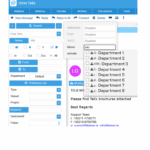
Searching for memo messages is now easier with a helper to select from a list with full names/groups/departments. Memo messages look better with avatar for Memo sender, short and full username and descriptive icons.

Quick Search Tips

 handy one page guide with valuable tips for quick search that apply to free text search as well.

Messages Sent by Me

Users with one or more shared mailboxes, have a unified Sent Folder with outgoing messages by all users. Creating the saved Selection i.e. SentByMe will allow to browse only your own outgoing messages.

Personalize Departments for Unified View

How to select default departments for Inbox and Search to have a unified view that better suit your everyday needs.

Smart Search Assistant

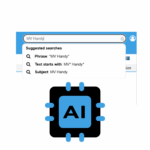
As you start typing in quick search, Omni offers automatic smart search suggestions to help you make a better search. Suggestions include part of word, in subject, email address, nearby words (phrase search), contacts, vessels, projects, tags, history et al.

Require assistance?

Email us at support@lgmar.gr with your inquiry and our Support agents will respond to you
promptly.